# bitsdojo_window
A [Flutter package](https://pub.dev/packages/bitsdojo_window) that makes it easy to customize and work with your Flutter desktop app window **on Windows, macOS and Linux**.
Watch the tutorial to get started. Click the image below to watch the video:
[](https://www.youtube.com/watch?v=bee2AHQpGK4 "Click to open")
 **Features**:
- Custom window frame - remove standard Windows/macOS/Linux titlebar and buttons
- Hide window on startup
- Show/hide window
- Move window using Flutter widget
- Minimize/Maximize/Restore/Close window
- Set window size, minimum size and maximum size
- Set window position
- Set window alignment on screen (center/topLeft/topRight/bottomLeft/bottomRight)
- Set window title
# Getting Started
Install the package using `pubspec.yaml`
# For Windows apps
Inside your application folder, go to `windows\runner\main.cpp` and add these two lines at the beginning of the file:
```cpp
#include
auto bdw = bitsdojo_window_configure(BDW_CUSTOM_FRAME | BDW_HIDE_ON_STARTUP);
```
# For macOS apps
Inside your application folder, go to `macos\runner\MainFlutterWindow.swift` and add this line after the one saying `import FlutterMacOS` :
```swift
import FlutterMacOS
import bitsdojo_window_macos // Add this line
```
Then change this line from:
```swift
class MainFlutterWindow: NSWindow {
```
to this:
```swift
class MainFlutterWindow: BitsdojoWindow {
```
After changing `NSWindow` to `BitsdojoWindow` add these lines below the line you changed:
```swift
override func bitsdojo_window_configure() -> UInt {
return BDW_CUSTOM_FRAME | BDW_HIDE_ON_STARTUP
}
```
Your code should now look like this:
```swift
class MainFlutterWindow: BitsdojoWindow {
override func bitsdojo_window_configure() -> UInt {
return BDW_CUSTOM_FRAME | BDW_HIDE_ON_STARTUP
}
override func awakeFromNib() {
... //rest of your code
```
#
If you don't want to use a custom frame and prefer the standard window titlebar and buttons, you can remove the `BDW_CUSTOM_FRAME` flag from the code above.
If you don't want to hide the window on startup, you can remove the `BDW_HIDE_ON_STARTUP` flag from the code above.
# For Linux apps
Inside your application folder, go to `linux\my_application.cc` and add this line at the beginning of the file:
```cpp
#include
```
Then look for these two lines:
```cpp
gtk_window_set_default_size(window, 1280, 720);
gtk_widget_show(GTK_WIDGET(window));
```
and change them to this:
```cpp
auto bdw = bitsdojo_window_from(window); // <--- add this line
bdw->setCustomFrame(true); // <-- add this line
//gtk_window_set_default_size(window, 1280, 720); // <-- comment this line
gtk_widget_show(GTK_WIDGET(window));
```
As you can see, we commented the line calling `gtk_window_set_default_size` and added these two lines before `gtk_widget_show(GTK_WIDGET(window));`
```cpp
auto bdw = bitsdojo_window_from(window);
bdw->setCustomFrame(true);
```
# Flutter app integration
Now go to `lib\main.dart` and add this code in the `main` function right after `runApp(MyApp());` :
```dart
void main() {
runApp(MyApp());
// Add this code below
doWhenWindowReady(() {
const initialSize = Size(600, 450);
appWindow.minSize = initialSize;
appWindow.size = initialSize;
appWindow.alignment = Alignment.center;
appWindow.show();
});
}
```
This will set an initial size and a minimum size for your application window, center it on the screen and show it on the screen.
You can find examples in the `example` folder.
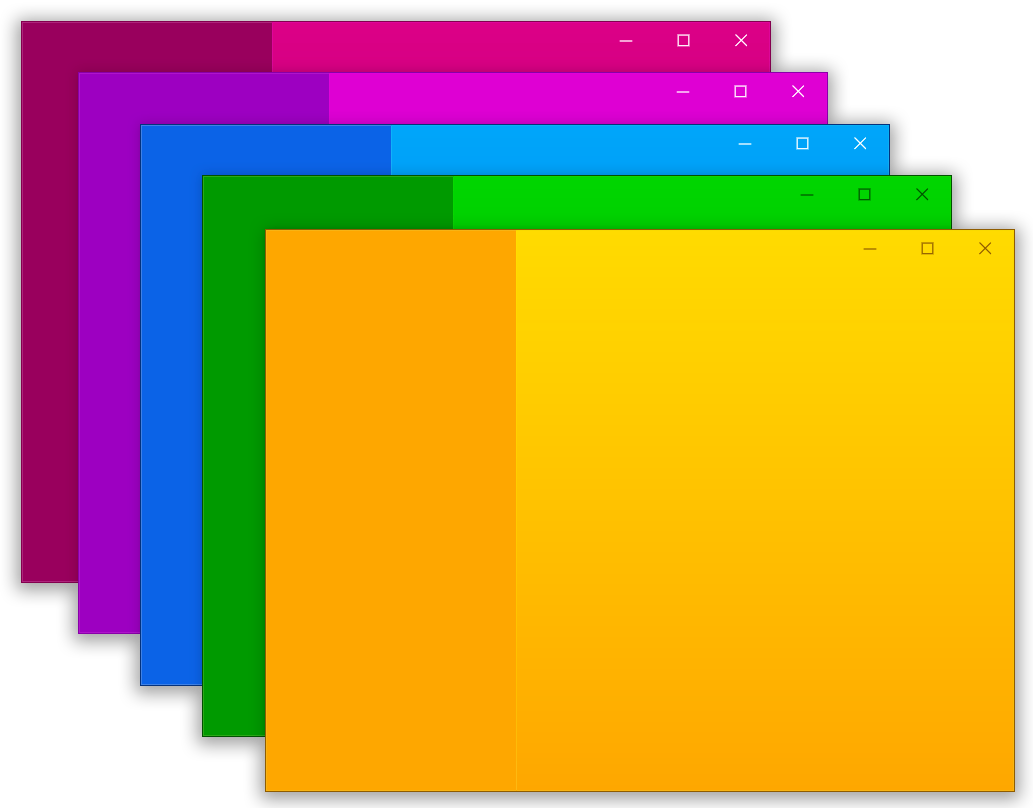
Here is an example that displays this window:
**Features**:
- Custom window frame - remove standard Windows/macOS/Linux titlebar and buttons
- Hide window on startup
- Show/hide window
- Move window using Flutter widget
- Minimize/Maximize/Restore/Close window
- Set window size, minimum size and maximum size
- Set window position
- Set window alignment on screen (center/topLeft/topRight/bottomLeft/bottomRight)
- Set window title
# Getting Started
Install the package using `pubspec.yaml`
# For Windows apps
Inside your application folder, go to `windows\runner\main.cpp` and add these two lines at the beginning of the file:
```cpp
#include
auto bdw = bitsdojo_window_configure(BDW_CUSTOM_FRAME | BDW_HIDE_ON_STARTUP);
```
# For macOS apps
Inside your application folder, go to `macos\runner\MainFlutterWindow.swift` and add this line after the one saying `import FlutterMacOS` :
```swift
import FlutterMacOS
import bitsdojo_window_macos // Add this line
```
Then change this line from:
```swift
class MainFlutterWindow: NSWindow {
```
to this:
```swift
class MainFlutterWindow: BitsdojoWindow {
```
After changing `NSWindow` to `BitsdojoWindow` add these lines below the line you changed:
```swift
override func bitsdojo_window_configure() -> UInt {
return BDW_CUSTOM_FRAME | BDW_HIDE_ON_STARTUP
}
```
Your code should now look like this:
```swift
class MainFlutterWindow: BitsdojoWindow {
override func bitsdojo_window_configure() -> UInt {
return BDW_CUSTOM_FRAME | BDW_HIDE_ON_STARTUP
}
override func awakeFromNib() {
... //rest of your code
```
#
If you don't want to use a custom frame and prefer the standard window titlebar and buttons, you can remove the `BDW_CUSTOM_FRAME` flag from the code above.
If you don't want to hide the window on startup, you can remove the `BDW_HIDE_ON_STARTUP` flag from the code above.
# For Linux apps
Inside your application folder, go to `linux\my_application.cc` and add this line at the beginning of the file:
```cpp
#include
```
Then look for these two lines:
```cpp
gtk_window_set_default_size(window, 1280, 720);
gtk_widget_show(GTK_WIDGET(window));
```
and change them to this:
```cpp
auto bdw = bitsdojo_window_from(window); // <--- add this line
bdw->setCustomFrame(true); // <-- add this line
//gtk_window_set_default_size(window, 1280, 720); // <-- comment this line
gtk_widget_show(GTK_WIDGET(window));
```
As you can see, we commented the line calling `gtk_window_set_default_size` and added these two lines before `gtk_widget_show(GTK_WIDGET(window));`
```cpp
auto bdw = bitsdojo_window_from(window);
bdw->setCustomFrame(true);
```
# Flutter app integration
Now go to `lib\main.dart` and add this code in the `main` function right after `runApp(MyApp());` :
```dart
void main() {
runApp(MyApp());
// Add this code below
doWhenWindowReady(() {
const initialSize = Size(600, 450);
appWindow.minSize = initialSize;
appWindow.size = initialSize;
appWindow.alignment = Alignment.center;
appWindow.show();
});
}
```
This will set an initial size and a minimum size for your application window, center it on the screen and show it on the screen.
You can find examples in the `example` folder.
Here is an example that displays this window:
Click to expand
```dart
import 'package:flutter/material.dart';
import 'package:bitsdojo_window/bitsdojo_window.dart';
void main() {
runApp(const MyApp());
doWhenWindowReady(() {
final win = appWindow;
const initialSize = Size(600, 450);
win.minSize = initialSize;
win.size = initialSize;
win.alignment = Alignment.center;
win.title = "Custom window with Flutter";
win.show();
});
}
const borderColor = Color(0xFF805306);
class MyApp extends StatelessWidget {
const MyApp({Key? key}) : super(key: key);
@override
Widget build(BuildContext context) {
return MaterialApp(
debugShowCheckedModeBanner: false,
home: Scaffold(
body: WindowBorder(
color: borderColor,
width: 1,
child: Row(
children: const [LeftSide(), RightSide()],
),
),
),
);
}
}
const sidebarColor = Color(0xFFF6A00C);
class LeftSide extends StatelessWidget {
const LeftSide({Key? key}) : super(key: key);
@override
Widget build(BuildContext context) {
return SizedBox(
width: 200,
child: Container(
color: sidebarColor,
child: Column(
children: [
WindowTitleBarBox(child: MoveWindow()),
Expanded(child: Container())
],
)));
}
}
const backgroundStartColor = Color(0xFFFFD500);
const backgroundEndColor = Color(0xFFF6A00C);
class RightSide extends StatelessWidget {
const RightSide({Key? key}) : super(key: key);
@override
Widget build(BuildContext context) {
return Expanded(
child: Container(
decoration: const BoxDecoration(
gradient: LinearGradient(
begin: Alignment.topCenter,
end: Alignment.bottomCenter,
colors: [backgroundStartColor, backgroundEndColor],
stops: [0.0, 1.0]),
),
child: Column(children: [
WindowTitleBarBox(
child: Row(
children: [Expanded(child: MoveWindow()), const WindowButtons()],
),
)
]),
),
);
}
}
final buttonColors = WindowButtonColors(
iconNormal: const Color(0xFF805306),
mouseOver: const Color(0xFFF6A00C),
mouseDown: const Color(0xFF805306),
iconMouseOver: const Color(0xFF805306),
iconMouseDown: const Color(0xFFFFD500));
final closeButtonColors = WindowButtonColors(
mouseOver: const Color(0xFFD32F2F),
mouseDown: const Color(0xFFB71C1C),
iconNormal: const Color(0xFF805306),
iconMouseOver: Colors.white);
class WindowButtons extends StatelessWidget {
const WindowButtons({Key? key}) : super(key: key);
@override
Widget build(BuildContext context) {
return Row(
children: [
MinimizeWindowButton(colors: buttonColors),
MaximizeWindowButton(colors: buttonColors),
CloseWindowButton(colors: closeButtonColors),
],
);
}
}
```
#
# ❤️ **Sponsors - friends helping this package**
I am developing this package in my spare time and any help is appreciated.
If you want to help you can [become a sponsor](https://github.com/sponsors/bitsdojo).
🙏 Thank you!
Want to help? [Become a sponsor](https://github.com/sponsors/bitsdojo)