---
title: 'How to set up Angular analytics, feature flags, and more'
date: 2023-10-17
author:
- ian-vanagas
showTitle: true
sidebar: Docs
featuredImage: >-
https://res.cloudinary.com/dmukukwp6/image/upload/posthog.com/contents/images/tutorials/banners/tutorial-14.png
tags:
- configuration
- feature flags
- events
---
Angular is one of the original JavaScript web app frameworks and remains a popular choice for building them. To make your Angular app as good as possible, you need tools like [analytics](/docs/product-analytics), [session replay](/docs/session-replay), and [feature flags](/docs/feature-flags). PostHog provides these tools and is easy to set up in Angular.
This tutorial shows you how to set up the tools PostHog provides by creating a basic Angular app, adding PostHog, and then using it to capture events and manage feature flags.
> **Note:** This tutorial uses Angular v16. To learn how to set up PostHog for v18, see our [Angular docs](/docs/libraries/angular).
## Creating our Angular app
Angular has a powerful CLI we rely on for this tutorial. Install it by running `npm install -g @angular/cli` in your terminal.
Once installed, create a new Angular app (with routing) and go into its folder.
```bash
npx -p @angular/cli@16 ng new angular-ph --routing
cd angular-ph
```
### Adding pages
To show the basics of PostHog, we create a simple app—just two pages and a link to move between them.
To start with creating this app, first, generate `home` and `about` components using the Angular CLI.
```bash
ng generate component home
ng generate component about
```
This creates new folders in `src/app` for each of them. Next, set up both these pages with a title and a link. First, edit `src/app/home/home.component.html` for the home page component:
```html
Home
Go to About
```
Next, edit `src/app/about/about.component.html` for the about page component:
```html
About
Back Home
```
In `src/app/app-routing.module.ts`, import and add these pages as routes:
```js
import { NgModule } from '@angular/core';
import { RouterModule, Routes } from '@angular/router';
import { HomeComponent } from './home/home.component';
import { AboutComponent } from './about/about.component';
const routes: Routes = [
{
path: '',
component: HomeComponent
},
{
path: 'about',
component: AboutComponent
}
];
@NgModule({
imports: [RouterModule.forRoot(routes)],
exports: [RouterModule]
})
export class AppRoutingModule { }
```
Remove the placeholder code from `app.component.html`, leaving us with only the router outlet.
```bash
```
Now, we can run `ng serve` in our terminal and go to [`http://localhost:4200/`](http://localhost:4200/) to see our basic app.

## Installing PostHog
With our app set up, it’s time to install and set up PostHog. To start, install the [JavaScript Web SDK](/docs/libraries/js):
```bash
npm i posthog-js
```
To preemptively fix a TypeScript compilation error, we need to install some `rrweb` types and then clear the `npm` cache.
```bash
npm install @rrweb/types@2.0.0-alpha.17 rrweb-snapshot@2.0.0-alpha.17
npm cache clean --force
```
Next, in `main.ts`, initialize PostHog using your project API key and instance address. You can get both in your [project settings](https://app.posthog.com/project/settings).
```js
import { platformBrowserDynamic } from '@angular/platform-browser-dynamic';
import { AppModule } from './app/app.module';
import posthog from 'posthog-js'
posthog.init('', {
api_host:'',
defaults: "",
})
platformBrowserDynamic().bootstrapModule(AppModule)
.catch(err => console.error(err));
```
Once set up, go back to your app, refresh, and PostHog begins autocapturing events. This includes button clicks, pageviews, pageleaves, and more. It also starts [recording sessions](/docs/session-replay) if you enable those in [your project settings](https://app.posthog.com/project/settings).
## Capturing custom events
Beyond pageviews, there might be more events you want to capture. To do this, you can capture custom events with PostHog.
To showcase this, add a button to the home component that captures a `home_button_clicked` event in PostHog. To do this, go to your `home.component.html` and add the button with a click handler.
```html
Home
Go to About
```
Afterwards, in `home.component.ts`, import PostHog and add the `onClick()` function with the `posthog.capture` call. Also, you can include a `button_name` property in the capture and use it for filtering later.
```js
import { Component } from '@angular/core';
import posthog from 'posthog-js'
@Component({
selector: 'app-home',
templateUrl: './home.component.html',
styleUrls: ['./home.component.css']
})
export class HomeComponent {
onClick() {
posthog.capture(
'home_button_clicked',
{ 'button_name': 'home' }
)
}
}
```
When users click this button, PostHog captures a custom `home_button_clicked` event.
## Setting up and using feature flags
PostHog enables you to use feature flags to control the release of features and code. We can use one to control the text on our button.
To start, go to the [feature flags tab](https://app.posthog.com/feature_flags) in PostHog and click "New feature flag." Name your key (like `test-flag`) and set the release conditions to 100% of users. Fill in any other details as you like, and then press "Save."
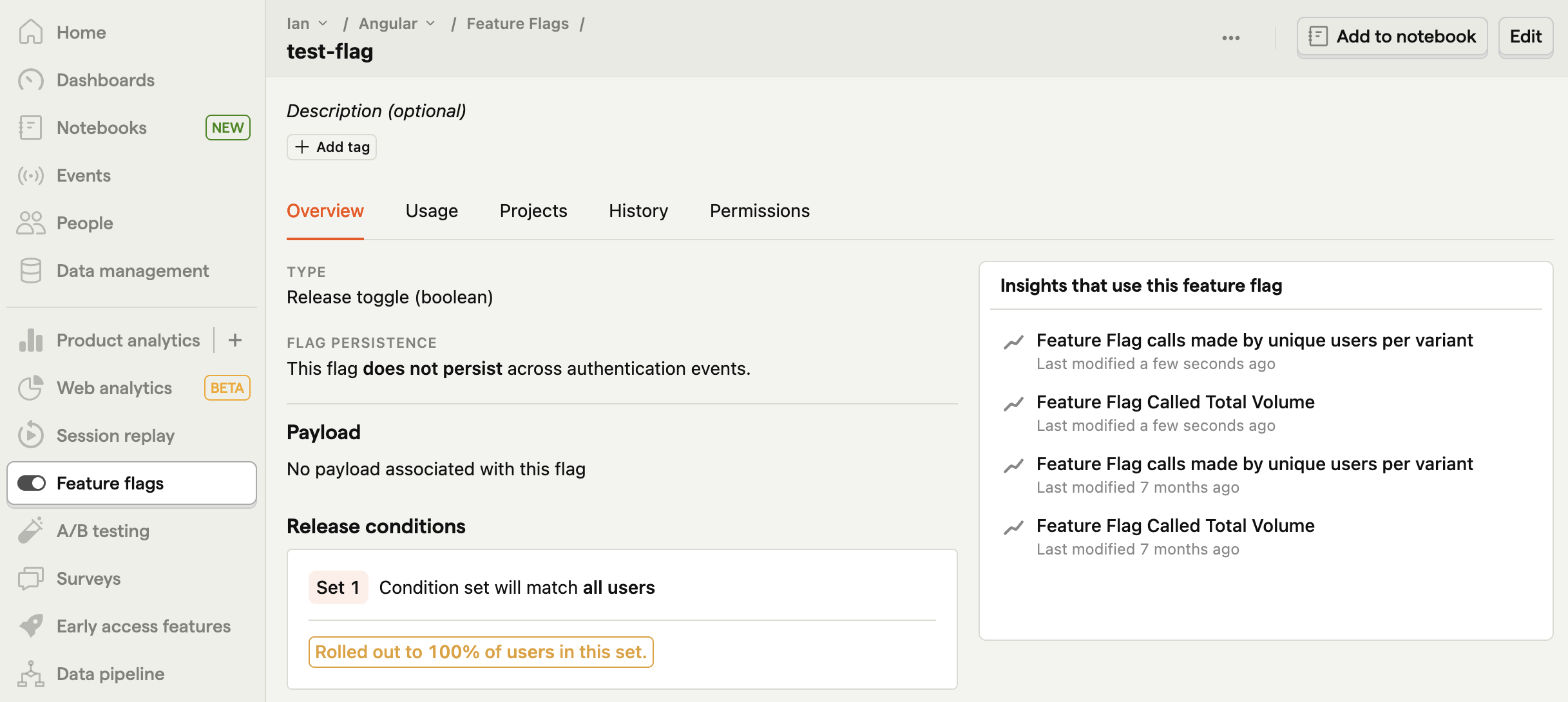
To implement the flag in our app, we must make the following changes the `home.component.ts` file:
- Set up a change detector service by importing `ChangeDetectorRef` and using a `constructor` to initialize it.
- Add a `buttonText` state variable in our `HomeComponent` class.
- Use the `ngOnInit()` lifecycle hook to wait for flags to load with `posthog.onFeatureFlags` then check our flag with `posthog.isFeatureEnabled('test-flag')`.
- Check the flag value, update the `buttonText` state, and use the `changeDetector` to update the template accordingly.
Altogether, this looks like this:
```js
import { Component, ChangeDetectorRef } from '@angular/core';
import posthog from 'posthog-js'
@Component({
selector: 'app-home',
templateUrl: './home.component.html',
styleUrls: ['./home.component.css']
})
export class HomeComponent {
constructor(private changeDetector: ChangeDetectorRef) {}
buttonText: string = 'Click me!';
ngOnInit() {
posthog.onFeatureFlags(() => {
if (posthog.isFeatureEnabled('test-flag')) {
this.buttonText = 'This page is great!';
this.changeDetector.detectChanges();
}
});
}
onClick() {
posthog.capture(
'home_button_clicked',
{ 'button_name': 'home' }
)
}
}
```
Lastly, update `home.component.html` to use the `buttonText` state variable.
```html
Home
Go to About
```
Now when you go to your app, a PostHog feature flag controls the button text.
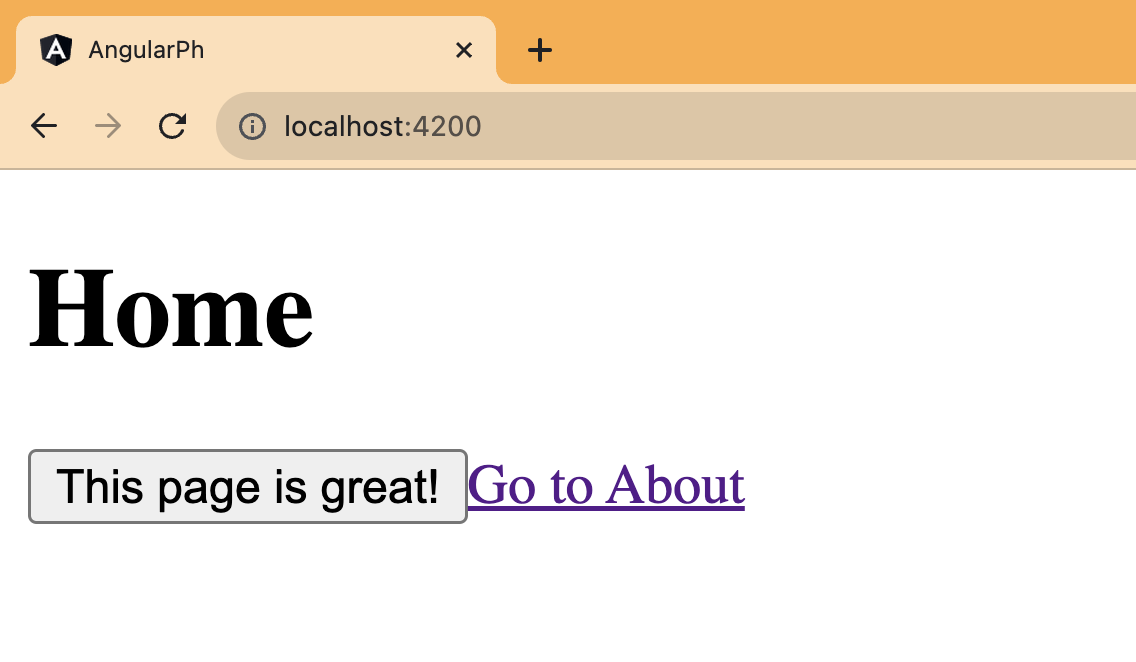
> **Note:** If you want to remove the "flickering" of the button value on the first load, you can [bootstrap the flag values](/tutorials/bootstrap-feature-flags-react).
## Further reading
- [How to set up A/B tests in Angular](/tutorials/angular-ab-tests)
- [How to set up surveys in Angular](/tutorials/angular-surveys)
- [How to set up A/B/n testing](/tutorials/abn-testing)