---
title: How to set up A/B tests in PHP
date: 2024-02-08
author:
- lior-neu-ner
tags:
- experimentation
---
import { ProductScreenshot } from 'components/ProductScreenshot'
export const EventsInPostHogLight = "https://res.cloudinary.com/dmukukwp6/image/upload/posthog.com/contents/images/tutorials/php-ab-tests/events-light.png"
export const EventsInPostHogDark = "https://res.cloudinary.com/dmukukwp6/image/upload/posthog.com/contents/images/tutorials/php-ab-tests/events-dark.png"
export const ResultsLight = "https://res.cloudinary.com/dmukukwp6/image/upload/posthog.com/contents/images/tutorials/php-ab-tests/results-light.png"
export const ResultsDark = "https://res.cloudinary.com/dmukukwp6/image/upload/posthog.com/contents/images/tutorials/php-ab-tests/results-dark.png"
A/B tests help you improve your PHP app by enabling you to compare the impact of changes on key metrics. To show you how to set one up, we create a basic PHP app, add PostHog, create an A/B test, and implement the code for it.
## 1. Create a basic PHP app
First, ensure [PHP](https://www.php.net/manual/en/install.php) is installed. Then, create a new folder for your project called `php-ab-tests`. In this folder, create an `index.php` file:
```bash
mkdir php-ab-tests
cd ./php-ab-tests
touch index.php
```
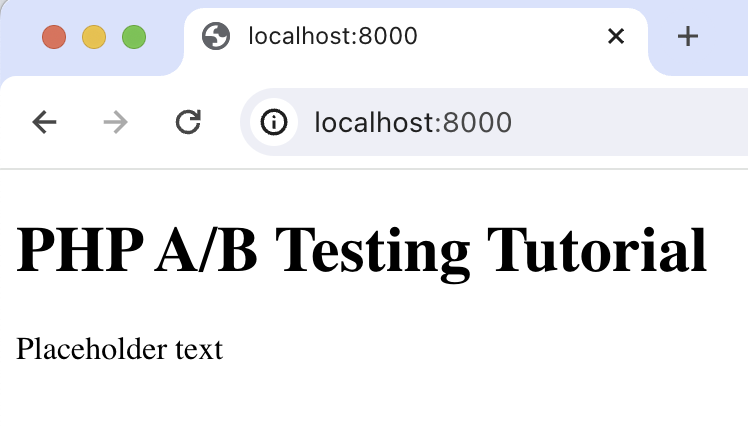
Next, add the following code to `index.php` to set up a basic page with a heading and paragraph:
```php file=index.php
PHP A/B Testing Tutorial
```
Run `php -S localhost:8000` and navigate to `http://localhost:8000` to see our app in action.
## 2. Add PostHog to your app
With our app set up, it’s time to install and set up PostHog. If you don't have a PostHog instance, you can [sign up for free](https://us.posthog.com/signup).
To start, make sure [Composer](https://getcomposer.org/) is installed. Then run `composer require posthog/posthog-php` to install [PostHog’s PHP SDK](/docs/libraries/php).
Then, initialize PostHog at the top of `index.php` using your project API key and instance address (you can find these in [your project settings](https://us.posthog.com/project/settings)):
```php file=index.php
',
['host' => '']
);
// rest of your code
```
Lastly, we [capture](/docs/product-analytics/capture-events) a `$pageview` event using `PostHog::capture()`:
```php file=index.php
',
['host' => '']
);
$paragraphText = 'Placeholder text';
$distinctId = 'placeholder-user-id';
PostHog::capture([
'distinctId' => $distinctId,
'event' => '$pageview'
]);
?>
```
With this set up, restart your app and then refresh your browser a few times. You should now see the captured event in your [PostHog activity tab](https://us.posthog.com/events).
## 3. Create an A/B test in PostHog
Next, go to the [A/B testing tab](https://us.posthog.com/experiments) and create an A/B test by clicking the **New experiment** button. Add the following details to your experiment:
1. Name it "My cool experiment".
2. Set "Feature flag key" to `my-cool-experiment`.
3. Use the default values for all other fields.
4. Click **Save as draft**.
Once created, set the primary metric to a trend of `pageview` and then click **Launch**.
## 4. Implement the A/B test code
To implement the A/B test, we:
1. Fetch the `my-cool-experiment` flag using [`PostHog::getFeatureFlag()`](/docs/libraries/php#feature-flags).
2. Update the paragraph text based on whether the user is in the `control` or `test` variant of the experiment.
```php file=index.php
',
['host' => '']
);
$paragraphText = 'Placeholder text';
$distinctId = 'placeholder-user-id';
// fetch the feature flag
$enabledVariant = PostHog::getFeatureFlag(
'my-cool-experiment',
$distinctId
);
if ($enabledVariant === "control") {
$paragraphText = "Control variant!";
} else if ($enabledVariant === "test") {
$paragraphText = "Test variant!";
}
// rest of your code
```
When you restart your app and refresh the page, you should see the text updated to either `Control variant!` or `Test variant!`.
> **💡 Setting the correct `distinctId`:**
>
> You may notice that we set `distinctId = 'placeholder-user-id'` in our flag call above. In production apps, to ensure you fetch the correct flag value for your user, `distinctId` should be set to their unique ID.
>
> For logged-in users, you typically use their email or user ID as their `distinctId`. For logged-out users, assuming they made their request from a browser, you can use values from their request cookies. See an example of this in our [Nuxt feature flags tutorial](/tutorials/nuxt-feature-flags#setting-the-correct-distinctid).
## 5. Include the feature flag when capturing your event
To ensure our goal metric is correctly calculated for each experiment variant, we need to include our feature flag information when capturing our `$pageview` event.
To do this, we add the [`$feature/my-cool-experiment`](/docs/libraries/php#step-2-include-feature-flag-information-when-capturing-events) key to our event properties:
```php file=index.php
$distinctId,
'event' => '$pageview',
'properties' => [
'$feature/my-cool-experiment' => $enabledVariant
]
]);
// rest of your code
```
Now PostHog is able to calculate our goal metric for our experiment results:
## Further reading
- [A software engineer's guide to A/B testing](/product-engineers/ab-testing-guide-for-engineers)
- [How to set up feature flags in PHP](/tutorials/php-feature-flags)
- [How to set up analytics in PHP](/tutorials/php-analytics)