---
title: How to set up analytics in React
date: 2025-03-07
author:
- lior-neu-ner
tags:
- product analytics
---
[Product analytics](/product-analytics) enables you to gather and analyze data about how users interact with your React app. To show you how to set up analytics, in this tutorial we create a basic React app with Vite, add PostHog, and use it to capture pageviews and custom events.
## Creating a React app with Vite
To demonstrate the basics of PostHog analytics, we'll create a simple app with two pages and a link to navigate between them.
First, ensure [Node.js is installed](https://nodejs.dev/en/learn/how-to-install-nodejs/) (version 20.0 or newer). Then create a new React app with Vite:
```bash
npm create vite@latest react-analytics -- --template react
cd react-analytics
npm install
```
Next, create two new files `HomePage.jsx` and `AboutPage.jsx` in your `src` directory:
```bash
cd ./src
touch HomePage.jsx
touch AboutPage.jsx
```
In `HomePage.jsx`, add the following code:
```jsx file=src/HomePage.jsx
function HomePage() {
return
Home Page
;
}
export default HomePage;
```
In `AboutPage.jsx`, add the following code:
```jsx file=src/AboutPage.jsx
function AboutPage() {
return
About Page
;
}
export default AboutPage;
```
Next, we set up the routing. First, install React Router in your project:
```bash
npm install react-router-dom
```
Then, set up the router by replacing the code in `App.jsx` with the following:
```jsx file=App.jsx
import React from 'react';
import { BrowserRouter as Router, Route, Link, Routes } from 'react-router-dom';
import HomePage from './HomePage';
import AboutPage from './AboutPage';
function App() {
return (
} />
} />
);
}
export default App;
```
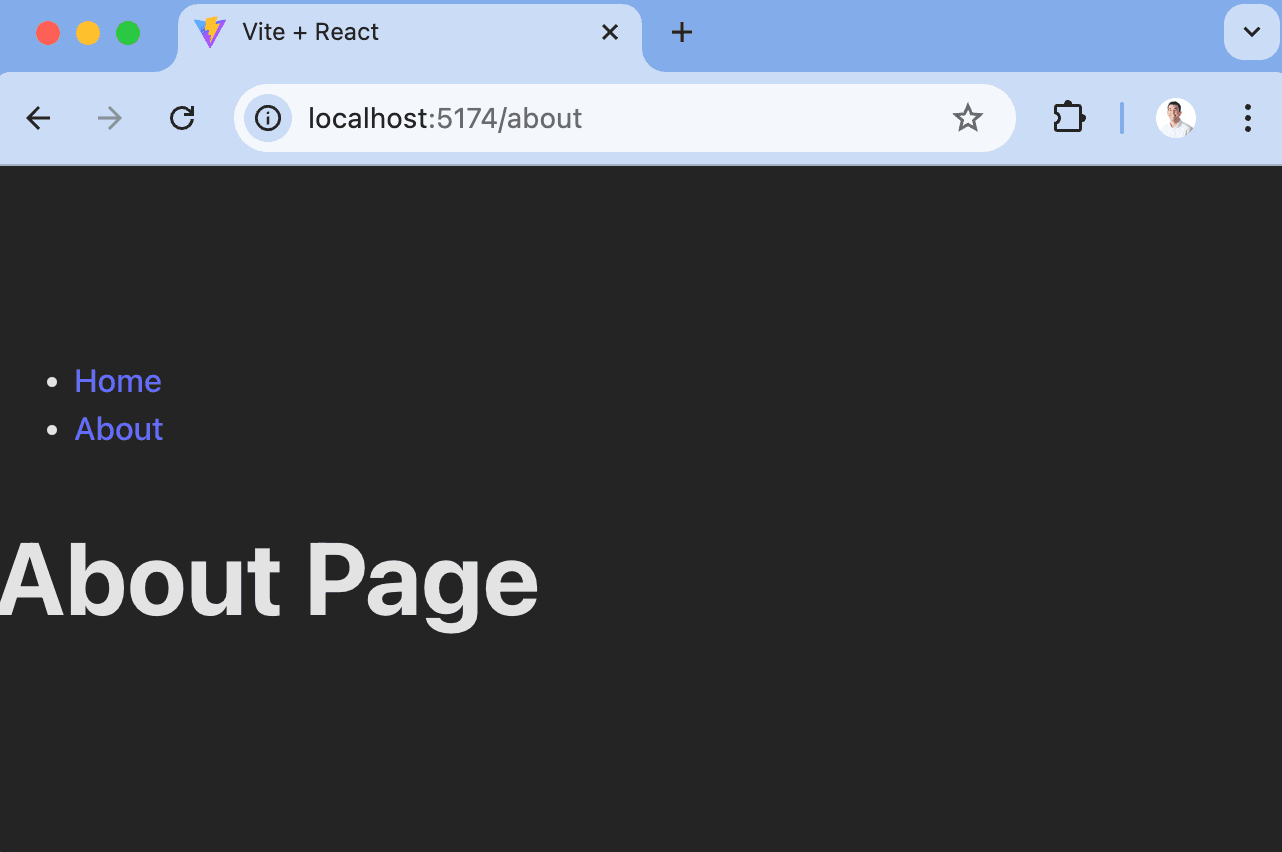
The basic setup is now complete. Run `npm run dev` to see your app in action.
## Adding PostHog
With our app set up, it's time to install and set up PostHog. If you don't have a PostHog instance, you can [sign up for free](https://us.posthog.com/signup).
First install `posthog-js` and `@posthog/react`:
```bash
npm install posthog-js @posthog/react
```
Next, import PostHog into `src/main.jsx` and set up it up using your project API key and host from [your project settings](https://us.posthog.com/settings/project). Then we wrap our app with `PostHogProvider` to access PostHog in any component.
```jsx file=src/main.jsx
import React from 'react'
import ReactDOM from 'react-dom/client'
import './index.css'
import App from './App.jsx'
import posthog from 'posthog-js'
import { PostHogProvider } from '@posthog/react'
posthog.init('', {
api_host: '',
defaults: '',
})
ReactDOM.createRoot(document.getElementById('root')).render(
,
)
```
Once you've done this, reload your app and click the links a few times. You should see pageviews and events appearing in PostHog's [activity tab](https://us.posthog.com/activity/explore).
## Capturing custom events
Beyond pageviews and autocaptured events, there might be more events you want to capture. To do this, you can [capture custom events](/docs/product-analytics/capture-events) with PostHog.
To showcase this, update the code in `HomePage.jsx` to include a button that uses PostHog to capture a `home_button_clicked` event:
```jsx file=HomePage.jsx
import { usePostHog } from '@posthog/react'
function HomePage() {
const posthog = usePostHog()
return (
Home Page
);
}
export default HomePage;
```
Now when you click the button, PostHog captures the custom `home_button_clicked` event. Notice that we also added a property `user_name` to the event. This is helpful for filtering events in PostHog.
## Further reading
- [How to set up surveys in React](/tutorials/react-surveys)
- [How to set up A/B tests in React](/tutorials/react-ab-testing)
- [How to set up feature flags in React](/tutorials/react-feature-flags)