 604b7e1937
Just an initial portion for now fixing incorrect text and preventing future incorrect text. Eventually, I'd like to fix everything still listed under "ignoredWords" in cspell.json.
5.9 KiB
Upgrading PHP Version
Upgrade to PHP 8
sudo apt update
sudo apt -y upgrade
A reboot is important after any upgrade.
sudo systemctl reboot
After a few minutes SSH back into your server
sudo apt update
sudo apt install lsb-release ca-certificates apt-transport-https software-properties-common -y
sudo add-apt-repository ppa:ondrej/php
Hit enter key when prompted to add the repository
sudo apt update
sudo apt install php8.0
sudo apt-get install -qq curl debconf-utils php-pear php8.0-curl php8.0-dev php8.0-gd php8.0-mbstring php8.0-zip php8.0-mysql php8.0-xml php8.0-fpm php8.0-intl php8.0-bcmath php8.0-cli php8.0-opcache
sudo service apache2 stop
Next lets edit NGINX to use new PHP8
sudo nano /etc/nginx/sites-available/default
Find fastcgi_pass unix:/var/run/php/***.sock;
*** will be your site name, unit3d or php7.4 for the most part
Replace fastcgi_pass unix:/var/run/php/***.sock; with fastcgi_pass unix:/var/run/php/php8.0-fpm.sock;.
Save and exit.
Test config sudo nginx -t
*If you didn't mess up you will see
nginx: the configuration file /etc/nginx/nginx.conf syntax is ok
nginx: configuration file /etc/nginx/nginx.conf test is successful
sudo systemctl reload nginx
sudo systemctl reload php8.0-fpm
sudo apt purge '^php7.4.*'
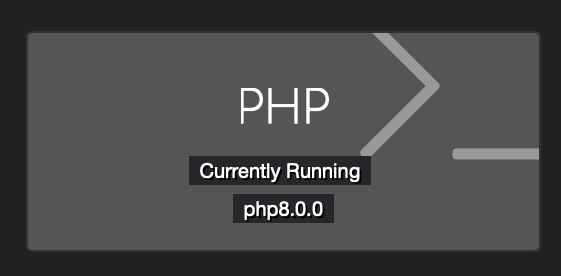
You should now be running PHP8 and can confirm by checking your staff dashboard.
Upgrade to PHP 8.1
sudo apt update
sudo apt -y upgrade
A reboot is important after any upgrade.
sudo systemctl reboot
After a few minutes SSH back into your server
sudo apt update
sudo apt install lsb-release ca-certificates apt-transport-https software-properties-common -y
sudo add-apt-repository ppa:ondrej/php
Hit enter key when prompted to add the repository
sudo apt update
sudo apt install php8.1
sudo apt-get install -qq curl debconf-utils php-pear php8.1-curl php8.1-dev php8.1-gd php8.1-mbstring php8.1-zip php8.1-mysql php8.1-xml php8.1-fpm php8.1-intl php8.1-bcmath php8.1-cli php8.1-opcache
sudo service apache2 stop
Next lets edit NGINX to use new PHP 8.1
sudo nano /etc/nginx/sites-available/default
Find fastcgi_pass unix:/var/run/php/***.sock;
*** will be your site name, unit3d or php8.0 for the most part
Replace fastcgi_pass unix:/var/run/php/***.sock; with fastcgi_pass unix:/var/run/php/php8.1-fpm.sock;.
Save and exit.
Test config sudo nginx -t
*If you didn't mess up you will see
nginx: the configuration file /etc/nginx/nginx.conf syntax is ok
nginx: configuration file /etc/nginx/nginx.conf test is successful
sudo systemctl reload nginx
sudo systemctl reload php8.1-fpm
sudo apt purge '^php7.4.*'
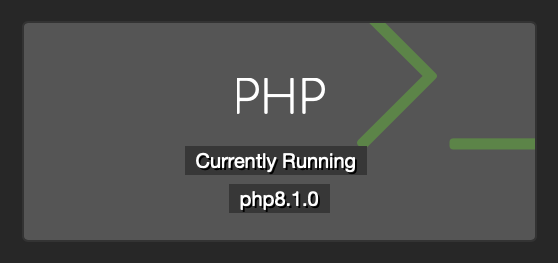
You should now be running PHP8.1 and can confirm by checking your staff dashboard.
Upgrade to PHP 8.2
sudo apt update
sudo apt -y upgrade
A reboot is important after any upgrade.
sudo systemctl reboot
After a few minutes SSH back into your server
sudo apt update
sudo apt install lsb-release ca-certificates apt-transport-https software-properties-common -y
sudo add-apt-repository ppa:ondrej/php
Hit enter key when prompted to add the repository
sudo apt update
sudo apt install php8.2
sudo apt-get install -qq curl debconf-utils php-pear php8.2-curl php8.2-dev php8.2-gd php8.2-mbstring php8.2-zip php8.2-mysql php8.2-xml php8.2-fpm php8.2-intl php8.2-bcmath php8.2-cli php8.2-opcache
sudo service apache2 stop
sudo apt remove apache2
Next lets edit NGINX to use new PHP 8.2
sudo nano /etc/nginx/sites-available/default
Find fastcgi_pass unix:/var/run/php/***.sock;
*** will be your site name, unit3d or php8.1 for the most part
Replace fastcgi_pass unix:/var/run/php/***.sock; with fastcgi_pass unix:/var/run/php/php8.2-fpm.sock;.
Save and exit.
Test config sudo nginx -t
*If you didn't mess up you will see
nginx: the configuration file /etc/nginx/nginx.conf syntax is ok
nginx: configuration file /etc/nginx/nginx.conf test is successful
sudo systemctl restart nginx
sudo systemctl restart php8.2-fpm
sudo systemctl stop php8.1-fpm
sudo apt purge '^php8.1.*'
sudo apt autoremove
You should now be running PHP8.2 and can confirm by checking your staff dashboard.
NOTE: If you had tuning done on PHP 8.1 you will need to reapply them to new PHP 8.2 configs.
sudo nano /etc/php/8.2/fpm/pool.d/www.conf
sudo nano /etc/php/8.2/fpm/php.ini
Upgrade to PHP 8.3
Save existing php package list to packages.txt file in case you have some additional ones not noted in this guide.
sudo dpkg -l | grep php | tee packages.txt
Add Ondrej's PPA
sudo add-apt-repository ppa:ondrej/php # Press enter when prompted.
sudo apt update
Install new PHP 8.3 packages
sudo apt install php8.3-common php8.3-cli php8.3-fpm php8.3-{redis,bcmath,curl,dev,gd,igbinary,intl,mbstring,mysql,opcache,readline,xml,zip}
Next lets edit NGINX to use new PHP 8.3
sudo nano /etc/nginx/sites-available/default
Find fastcgi_pass unix:/var/run/php/***.sock;
*** will be your site name, unit3d or php8.2 for the most part
Replace fastcgi_pass unix:/var/run/php/***.sock; with fastcgi_pass unix:/var/run/php/php8.3-fpm.sock;.
Save and exit.
Test config sudo nginx -t
*If you didn't mess up you will see
nginx: the configuration file /etc/nginx/nginx.conf syntax is ok
nginx: configuration file /etc/nginx/nginx.conf test is successful
sudo systemctl restart nginx
sudo systemctl restart php8.3-fpm
sudo systemctl stop php8.2-fpm
Remove old packages
sudo apt purge '^php8.2.*'
You should now be running PHP8.3 and can confirm by checking your staff dashboard.
NOTE: If you had tuning done on PHP 8.2 you will need to reapply them to new PHP 8.3 configs.
sudo nano /etc/php/8.3/fpm/pool.d/www.conf
sudo nano /etc/php/8.3/fpm/php.ini