mirror of
https://github.com/BillyOutlast/posthog.com.git
synced 2026-02-05 11:51:21 +01:00
 699908a3b7
* Add posthog-js defaults to snippet examples

* Add defaults to install-web too

* Add some more defaults

* feat: Add `<ph_posthog_js_defaults>` everywhere

Everywhere where we're initializing `<ph_project_api_key>` now also initializes `<ph_posthog_js_defaults>`. A follow-up pass is needed to update `pageview` docs letting people know we're tracking these automatically now

* refactor(): Remove `ph_posthog_js_defaults` where we're not initing lib from beggining

We'll only include the `defaults` suggestion in places where we're explaining HOW we initialize posthog. When we're talking about a non-correlated config, then we'll omit it. The same applies to `api_host`

* refactor: Stop using `history_change` in most places

Rather than suggesting `history_change`, let's instead suggest using our new `defaults` feature

* add a space

* change next.js note

* Ian's fixes

---------

Co-authored-by: Rafa Audibert <rafael@posthog.com>
Co-authored-by: Ian Vanagas <34755028+ivanagas@users.noreply.github.com>
195 lines
7.1 KiB
Markdown
195 lines
7.1 KiB
Markdown
---
|
||
title: How to set up A/B tests in Angular
|
||
date: 2024-01-23
|
||
author:
|
||
- lior-neu-ner
|
||
tags:
|
||
- experimentation
|
||
---
|
||
|
||
import { ProductScreenshot } from 'components/ProductScreenshot'
|
||
export const EventsInPostHogLight = "https://res.cloudinary.com/dmukukwp6/image/upload/posthog.com/contents/images/tutorials/angular-ab-tests/events-light.png"
|
||
export const EventsInPostHogDark = "https://res.cloudinary.com/dmukukwp6/image/upload/posthog.com/contents/images/tutorials/angular-ab-tests/events-dark.png"
|
||
|
||
A/B tests help you make your Angular app better by enabling you to compare the impact of changes on key metrics. To show you how to set one up, we create a basic Angular app, add PostHog, create an A/B test, and implement the code for it.
|
||
|
||
## 1. Create an Angular app
|
||
|
||
First, ensure [Node.js is installed](https://nodejs.dev/en/learn/how-to-install-nodejs/) (version 14.20.0 or newer). Then, install the Angular CLI and create a new Angular app:
|
||
|
||
```bash
|
||
npm install -g @angular/cli
|
||
ng new angular-ab-tests
|
||
```
|
||
|
||
Select `CSS` as your stylesheet and `No` for server side rendering and static site generation.
|
||
|
||
Next, Replace the code in `src/app/app.component.html` with a simple heading and button:
|
||
|
||
```html file=app.component.html
|
||
<div id="app">
|
||
<h1>Angular A/B Test</h1>
|
||
<button (click)="handleClick()">Click me!</button>
|
||
</div>
|
||
```
|
||
|
||
Then, edit the `app.component.ts` file to include the click handler:
|
||
|
||
```typescript file=app.component.ts
|
||
import { Component } from '@angular/core';
|
||
|
||
@Component({
|
||
selector: 'app-root',
|
||
templateUrl: './app.component.html',
|
||
styleUrls: ['./app.component.css'],
|
||
standalone: true
|
||
})
|
||
export class AppComponent {
|
||
handleClick() {
|
||
// Event handling logic will go here
|
||
}
|
||
}
|
||
```
|
||
|
||
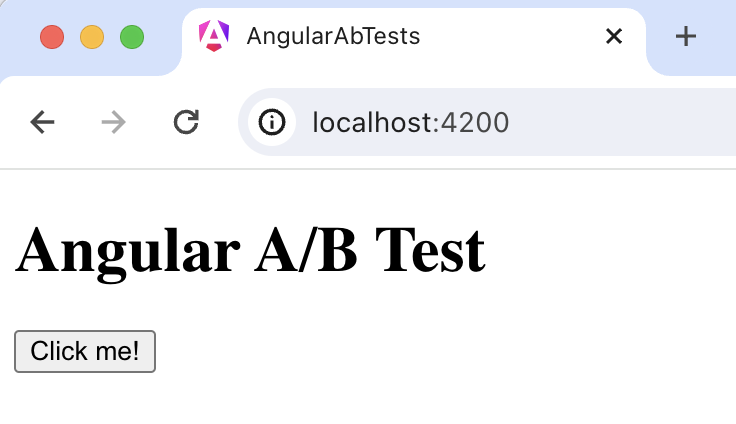
Run `ng serve` and navigate to http://localhost:4200 to see your app in action.
|
||
|
||
|
||
|
||
## 2. Add PostHog to your Angular app
|
||
|
||
With our app set up, it’s time to install and set up PostHog. To start, install the [JavaScript web SDK](/docs/libraries/js):
|
||
|
||
```bash
|
||
npm i posthog-js
|
||
```
|
||
|
||
In `src/main.ts`, initialize PostHog using your project API key and instance address. You can get both in your [project settings](https://us.posthog.com/project/settings).
|
||
|
||
```ts file=main.ts
|
||
import { bootstrapApplication } from '@angular/platform-browser';
|
||
import { appConfig } from './app/app.config';
|
||
import { AppComponent } from './app/app.component';
|
||
import posthog from 'posthog-js'
|
||
|
||
posthog.init('<ph_project_api_key>', {
|
||
api_host:'<ph_client_api_host>',
|
||
defaults: '<ph_posthog_js_defaults>'
|
||
})
|
||
|
||
bootstrapApplication(AppComponent, appConfig)
|
||
.catch((err) => console.error(err));
|
||
```
|
||
|
||
Once you’ve done this, reload your app and click the button a few times. You should see events appearing in the [PostHog events explorer](https://us.posthog.com/events).
|
||
|
||
## 3. Capture a custom event
|
||
|
||
The first part of setting up our A/B test in PostHog is setting up the goal metric. We'll use the number of clicks on the button as our goal.
|
||
|
||
To measure this, we [capture a custom event](/docs/product-analytics/capture-events) `home_button_clicked` when the button is clicked. To do this, import `posthog-js` into `app.component.ts` and capture an event in `handleClick()`:
|
||
|
||
```typescript file=app.component.ts
|
||
import { Component } from '@angular/core';
|
||
import posthog from 'posthog-js'
|
||
|
||
@Component({
|
||
// existing component code
|
||
})
|
||
export class AppComponent {
|
||
handleClick() {
|
||
posthog.capture(
|
||
'home_button_clicked',
|
||
)
|
||
}
|
||
}
|
||
|
||
```
|
||
|
||
With this set up, refresh your app and click the button a few times to see the event captured in PostHog.
|
||
|
||
<ProductScreenshot
|
||
imageLight={EventsInPostHogLight}
|
||
imageDark={EventsInPostHogDark}
|
||
alt="Events captured in PostHog"
|
||
classes="rounded"
|
||
/>
|
||
|
||
## 3. Create an A/B test in PostHog
|
||
|
||
Next, go to the [A/B testing tab](https://us.posthog.com/experiments) and create an A/B test by clicking the **New experiment** button. Add the following details to your experiment:
|
||
|
||
1. Name it "My cool experiment".
|
||
2. Set "Feature flag key" to `my-cool-experiment`.
|
||
3. Use the default values for all other fields.
|
||
4. Click **Save as draft**.
|
||
|
||
<ProductScreenshot
|
||
imageLight="https://res.cloudinary.com/dmukukwp6/image/upload/Clean_Shot_2025_01_16_at_09_53_57_2x_2b998be1a8.png"
|
||
imageDark="https://res.cloudinary.com/dmukukwp6/image/upload/Clean_Shot_2025_01_16_at_09_53_32_2x_0b8f1da910.png"
|
||
alt="Experiment setup in PostHog"
|
||
classes="rounded"
|
||
/>
|
||
|
||
Once created, set the primary metric to a trend of `home_button_clicked` and then click **Launch**.
|
||
|
||
## 4. Implement the A/B test code
|
||
|
||
To implement the A/B test, we fetch the `my-cool-experiment` feature flag and update the button text based on whether the user is in the `control` or `test` variant of the experiment.
|
||
|
||
To do this, update your code in `app.component.ts` to use the [`ngOnInit`](https://angular.io/api/core/OnInit) lifecycle hook to implement the [`posthog.onFeatureFlags`](/docs/libraries/js/features#ensuring-flags-are-loaded-before-usage) callback. Then, we'll update the button text using [`ChangeDetectorRef`](https://angular.io/api/core/ChangeDetectorRef):
|
||
|
||
```typescript file=app.component.ts
|
||
import { Component, ChangeDetectorRef } from '@angular/core';
|
||
import posthog from 'posthog-js'
|
||
|
||
@Component({
|
||
selector: 'app-root',
|
||
templateUrl: './app.component.html',
|
||
styleUrls: ['./app.component.css'],
|
||
standalone: true
|
||
})
|
||
export class AppComponent {
|
||
constructor(private changeDetector: ChangeDetectorRef) {}
|
||
|
||
buttonText = 'No variant';
|
||
|
||
ngOnInit() {
|
||
posthog.onFeatureFlags(() => {
|
||
console.log(posthog.getFeatureFlag('my-cool-experiment'))
|
||
if (posthog.getFeatureFlag('my-cool-experiment') === 'control') {
|
||
this.buttonText = 'Control variant';
|
||
} else if (posthog.getFeatureFlag('my-cool-experiment') === 'test') {
|
||
this.buttonText = 'Test variant';
|
||
}
|
||
this.changeDetector.detectChanges();
|
||
});
|
||
}
|
||
|
||
handleClick() {
|
||
// rest of your code
|
||
}
|
||
}
|
||
```
|
||
|
||
Lastly, update `app.component.html` to use the `buttonText` state variable.
|
||
|
||
```html file=app.component.html
|
||
<div id="app">
|
||
<h1>Angular A/B Test</h1>
|
||
<button (click)="handleClick()">{{ buttonText }}</button>
|
||
</div>
|
||
```
|
||
|
||
Now if you refresh your app, you should see the button text updated to either `Control variant` or `Test variant`.
|
||
|
||
With this, you’re ready to launch your A/B test! PostHog will randomly split your users into the each variant and track whether it has an impact on the button click-through rate. You can [view your test results](/docs/experiments/testing-and-launching#viewing-experiment-results) on the experiment page in PostHog.
|
||
|
||
> **💡 PostHog Tip:** You may notice the button text "flicker" while the page loads and PostHog fetches the feature flag. To fix this, you can [bootstrap the flag value](/docs/feature-flags/bootstrapping).
|
||
|
||
## Further reading
|
||
|
||
- [How to set up Angular analytics, feature flags, and more](/tutorials/angular-analytics)
|
||
- [How to set up surveys in Angular](/tutorials/angular-surveys)
|
||
- [How to set up session replays in Android](/tutorials/android-session-replay)
|
||
|
||
<NewsletterForm /> |